Check what the scan needs to preserve
Open the original and find the smallest important detail: a date, a faint handwritten note, a stamp or a table entry. That detail is your quality check. A clear heading tells you little about whether the rest of the scan remains usable.
Pageivo makes a smaller sharing copy by rendering each page as an image, encoding it as JPEG and placing it in a new PDF. It does not perform OCR or preserve a searchable text layer. Links, form fields, accessibility tags and digital signatures are not preserved by this process. Keep the original.
Use the same source to compare the three presets
The Pageivo Lab includes a synthetic one-page scan with 10-point text and a table. Its source is 154,983 bytes. These are the saved reference results from the Lab, not promised reductions for other documents. Your browser's JPEG encoder can produce a slightly different size.
| Preset | Reference output | Reduction from the source |
|---|---|---|
| Smaller file | 29,693 bytes | 80.8% |
| Balanced | 57,054 bytes | 63.2% |
| Clearer pages | 93,322 bytes | 39.8% |
Compress a scan in Pageivo
Begin with Balanced. If you are learning the workflow, choose Try a sample in Compress PDF to load the public Lab scan. The sample replaces your current selection.
- Select the original PDF and choose Balanced under Compression quality.
- Run Compress PDF and keep the tab open until the result is ready.
- Download the result and open it beside the original at a readable zoom level.
- Check the smallest text, faint marks, page edges and total page count.
- If detail is lost, select the original again and try Clearer pages. If the copy is readable but too large, compare Smaller file using the original again.
Interpret the result before uploading it
Use the receiving service's actual size limit. A file can be smaller than before and still fail that limit. Pageivo's presets do not promise an exact output size.
If the source is already efficiently compressed, the new PDF can be larger. In that case keep the original unless the new copy solves another explicit requirement. Repeatedly compressing a compressed result can damage details without delivering useful savings.
| Result | Next action |
|---|---|
| Readable and within the limit | Keep the reviewed sharing copy and retain the original. |
| Within the limit but important marks are blurred | Use Clearer pages from the original; do not sacrifice required information. |
| Still too large after all acceptable presets | Remove only unnecessary pages, or ask whether separate sections or another delivery method are accepted. |
| The recipient needs searchable text | Use a workflow that retains or creates a text layer and verify that search works. |
Resolve failures without losing the source
Large scans require memory while each page is rendered. If the tab stops responding, close other heavy tabs and try fewer pages or a device with more memory. Split the source only if separate files are acceptable, or merge reviewed sections afterward and check the final size again.
A password-protected PDF may need an authorized unlocked working copy before compression. Compression cannot repair every damaged PDF. Open the source in a compatible reader first to distinguish a source-file problem from a browser-processing problem.
Try the worked example
A synthetic scan with 10-point text and a table is processed with all three current presets.
Try it: Start with scan-source.pdf each time. Choose a preset, compress, then inspect the download at normal size and close zoom.
Start with these files
- Original image-based PDF151.4 KB
Compare the result
- Smaller file result29.0 KB
- Balanced result55.7 KB
- Clearer pages result91.1 KB
| Preset | Result | Size reduction | Rendered pixels |
|---|---|---|---|
| Smaller file | 29.0 KB | 80.8% | 685 × 969 |
| Balanced | 55.7 KB | 63.2% | 893 × 1263 |
| Clearer pages | 91.1 KB | 39.8% | 1131 × 1600 |
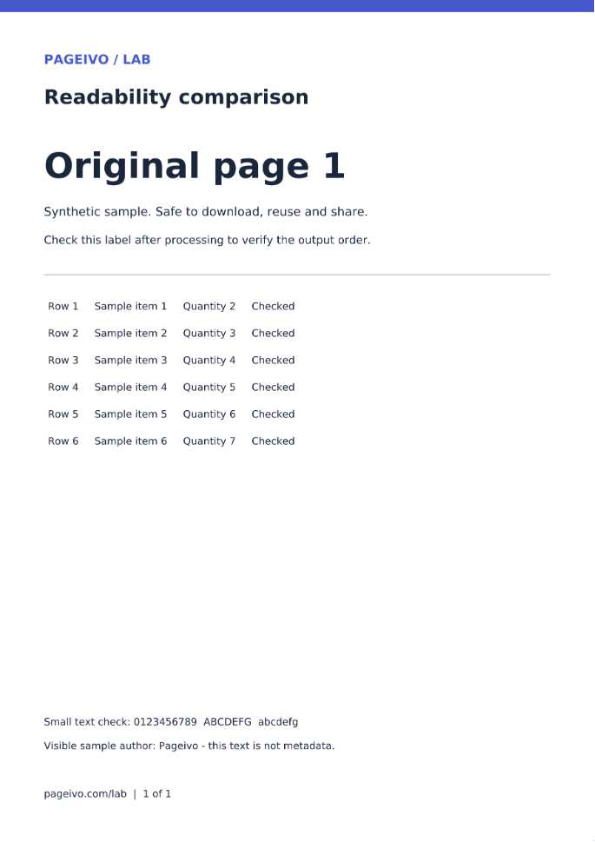
These reference files use the same PDF rendering library and presets as Pageivo with a Node canvas. Browser JPEG encoding can change file size and appearance. The percentages apply only to this sample, and the scan already has no text layer.
Technical references
The steps describe Pageivo's current implementation. These references explain the underlying PDF operations and their limits.
Use the related Pageivo tool
Make large PDF files easier to share. The operation runs in your browser and does not require an account.